

What are Notifications?
Notifications tell your team about important events on your MCP server as they happen. You do not have to watch the dashboard. AgentCat sends each notification by email, to Slack channels, or to both. Each notification has two parts:- A trigger: the event that fires the notification, for example a new issue
- A delivery: the Slack channels and team members that receive it
Notifications That Are On by Default
You do not have to set anything up to start. When you create a project, AgentCat turns on three notifications for it. AgentCat sends them by email to the person who created the project.
AgentCat also emails the person who created the organization when billable sessions reach 80% and 100% of the session quota for the billing period.
To see your notifications, click Notifications in the sidebar.
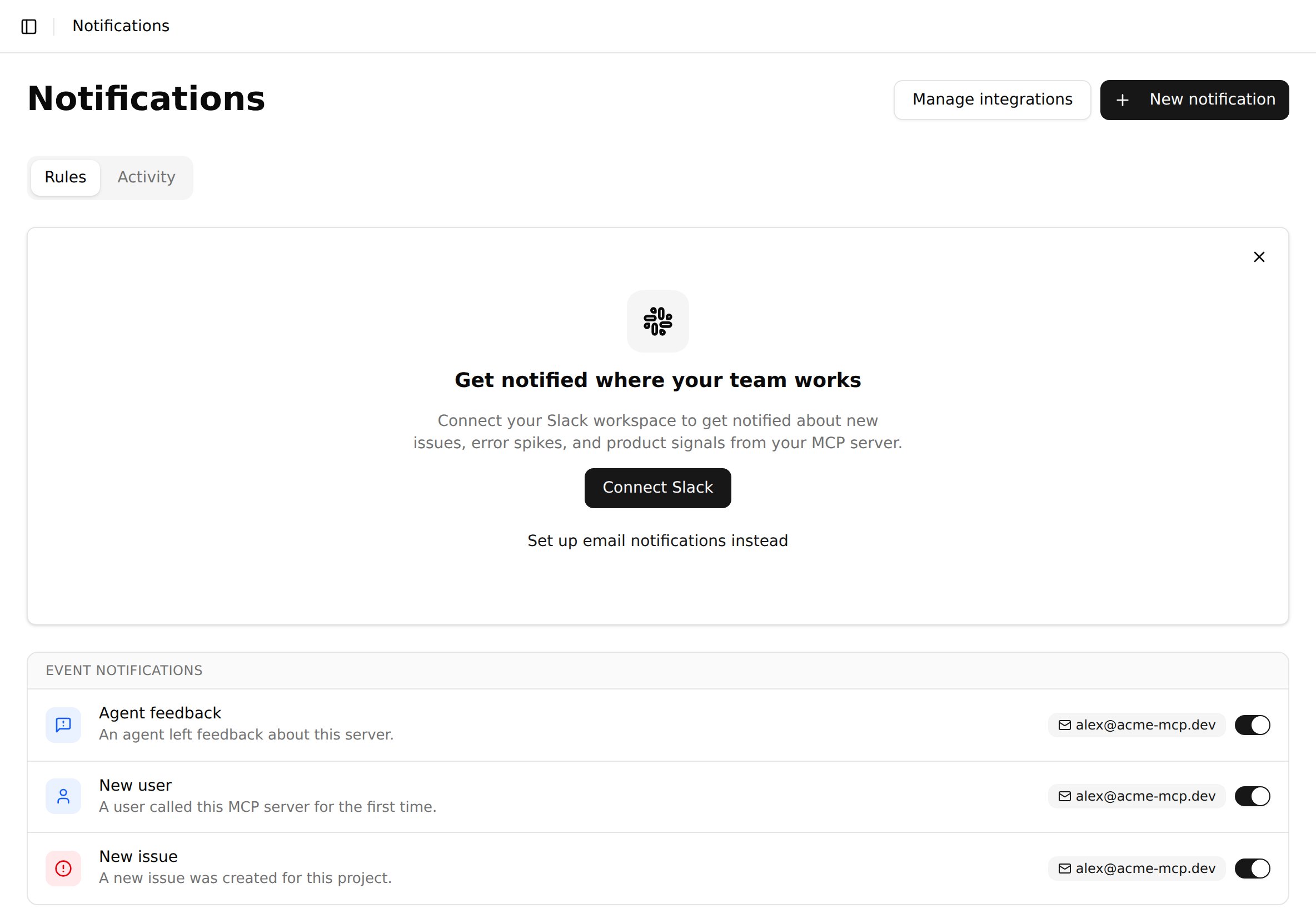
Get Started with Slack
Connect Slack to send notifications to the channels where your team works.1
Connect your Slack workspace
On the Notifications page, click Connect Slack. You can also go to Settings > Integrations and click Connect Slack on the Slack card.Slack asks you to approve the AgentCat app. Approve it to return to AgentCat.
2
Choose a channel for the default notifications
Go back to the Notifications page. A You’re connected dialog opens.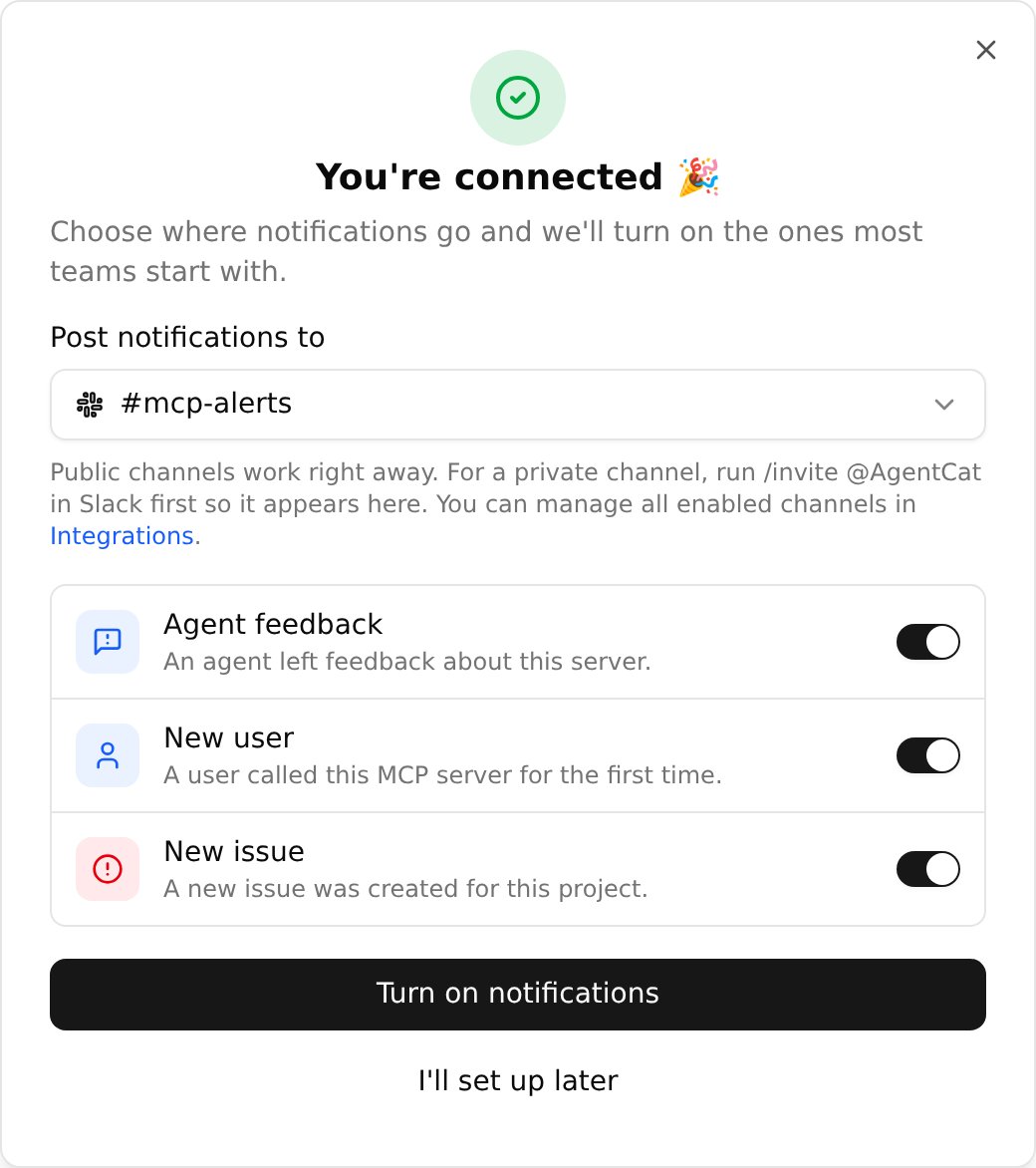
- In Post notifications to, select a Slack channel.
- Use the switches to select the default notifications that you want in this channel.
- Click Turn on notifications.
Public channels show in the list immediately. To use a private channel, run
/invite @AgentCat in that channel first.3
Make sure that the notifications go to Slack
The Notifications page shows a Slack channel next to each notification that you turned on. The email delivery stays in place.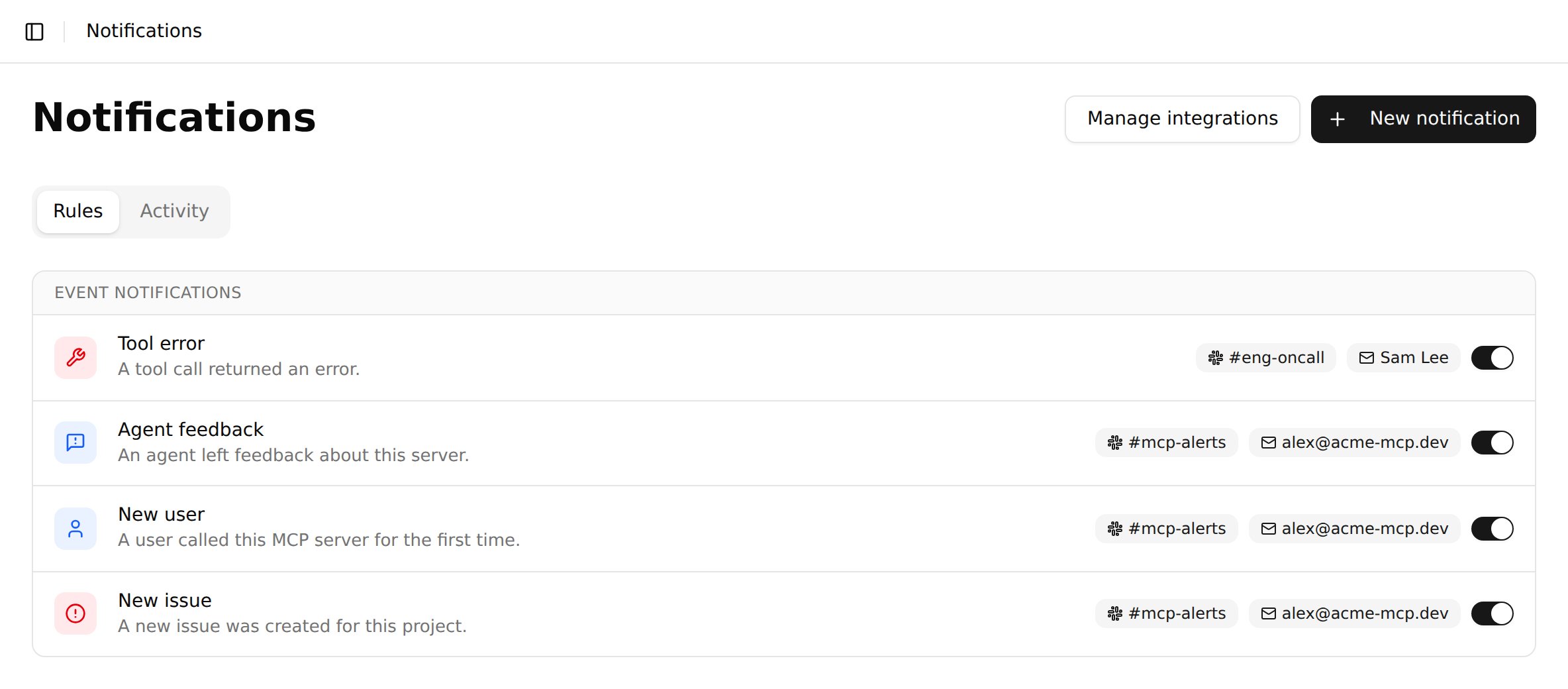
Create a Notification
Add a notification for more events, or send an event to other people.1
Start a new notification
On the Notifications page, click New notification. Then click When a specific event happens, and click Next.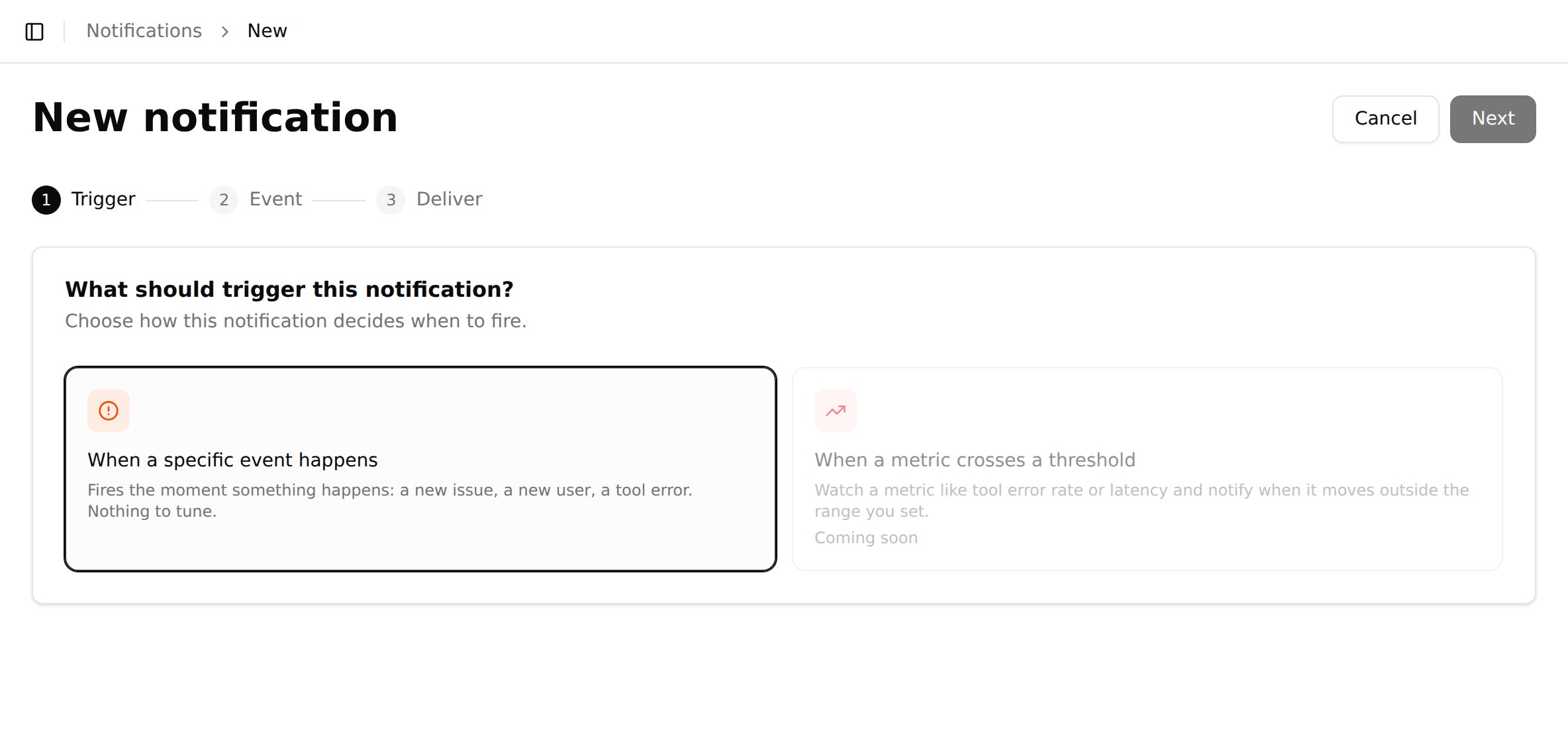
2
Choose the event
Click the event that you want, and click Next. An event that the project already has shows Already added.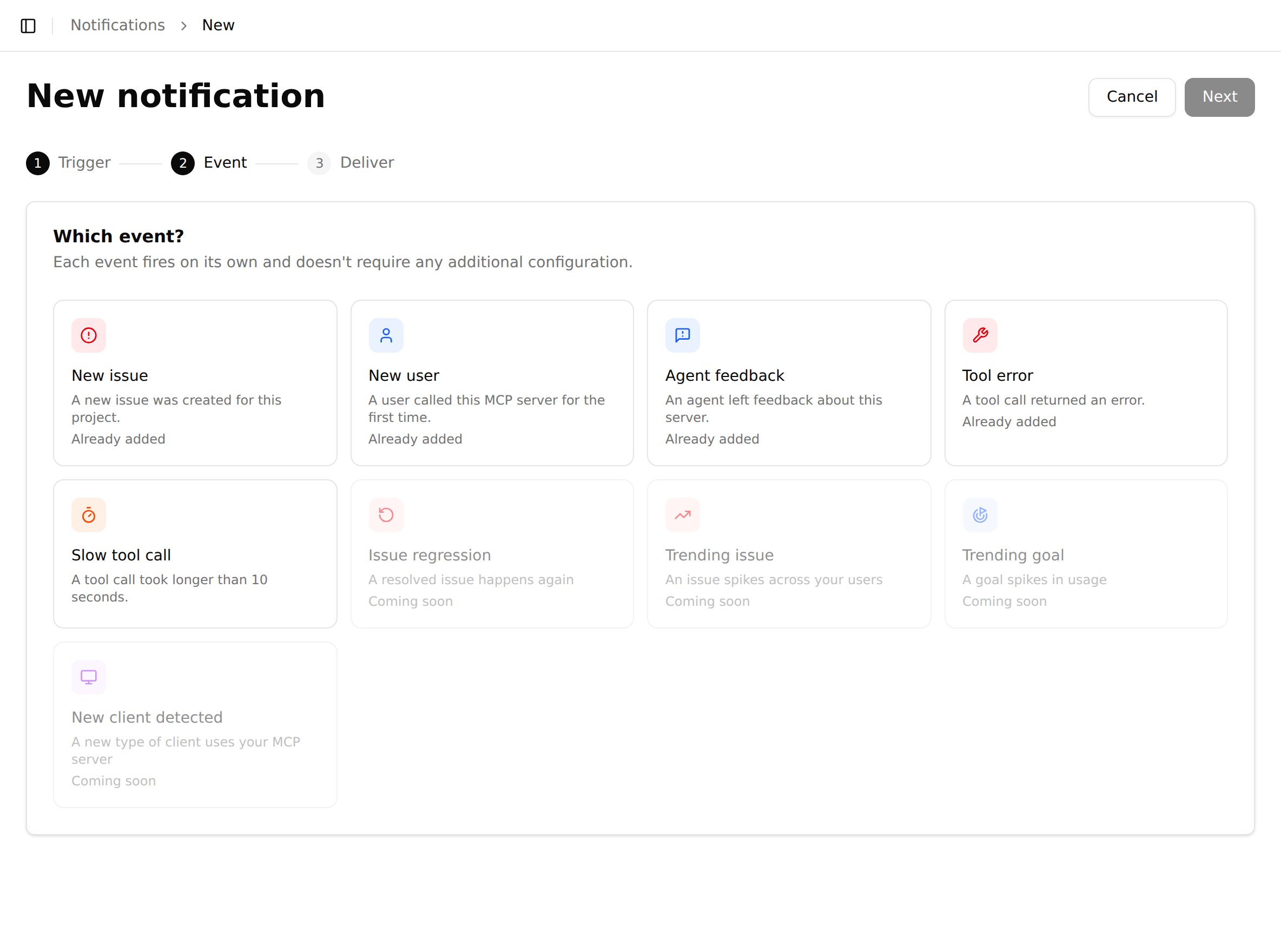
3
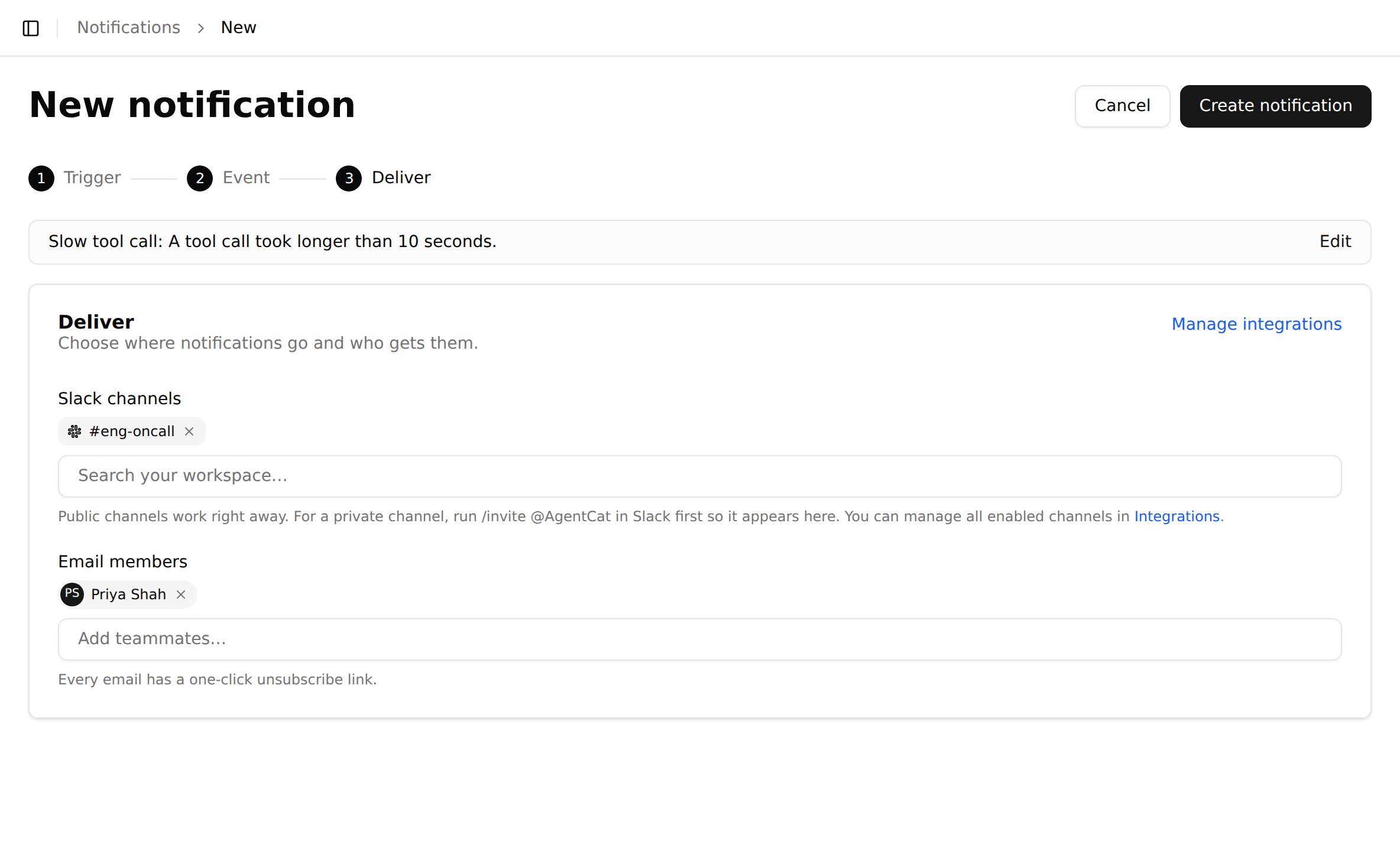
Choose who gets the notification
- In Slack channels, search your workspace and select one or more channels.
- In Email members, select the team members who get an email.
- Click Create notification.
Edit a Notification
To edit a notification, click it on the Notifications page. A panel opens on the right side.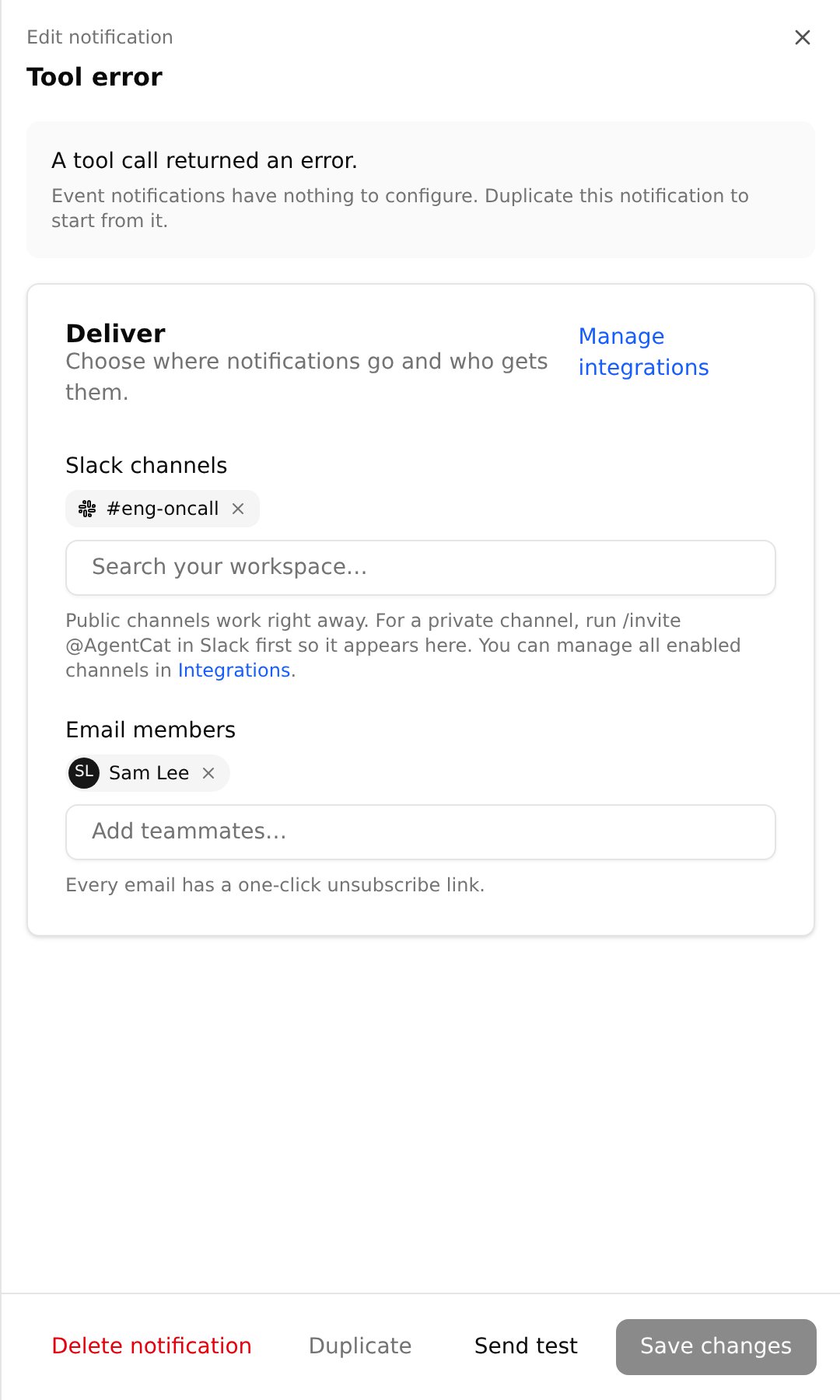
- Add or remove Slack channels and email members, then click Save changes
- Click Send test to send a test message to each delivery
- Click Duplicate to start a new notification from this one
- Click Delete notification to stop the notification
How Often Notifications Arrive
AgentCat limits how often one notification sends messages, so that a burst of events does not flood your channels. After a notification sends a message, AgentCat collects more events of the same type for a short time. When that time ends, AgentCat sends one summary message for the collected events.
Every notification email has a one-click unsubscribe link. The link removes only that email address from that notification.
See Past Notifications
On the Notifications page, click the Activity tab. The table shows each notification that fired, a summary of the event, who received it, and when it fired. Use the date selector to change the time range.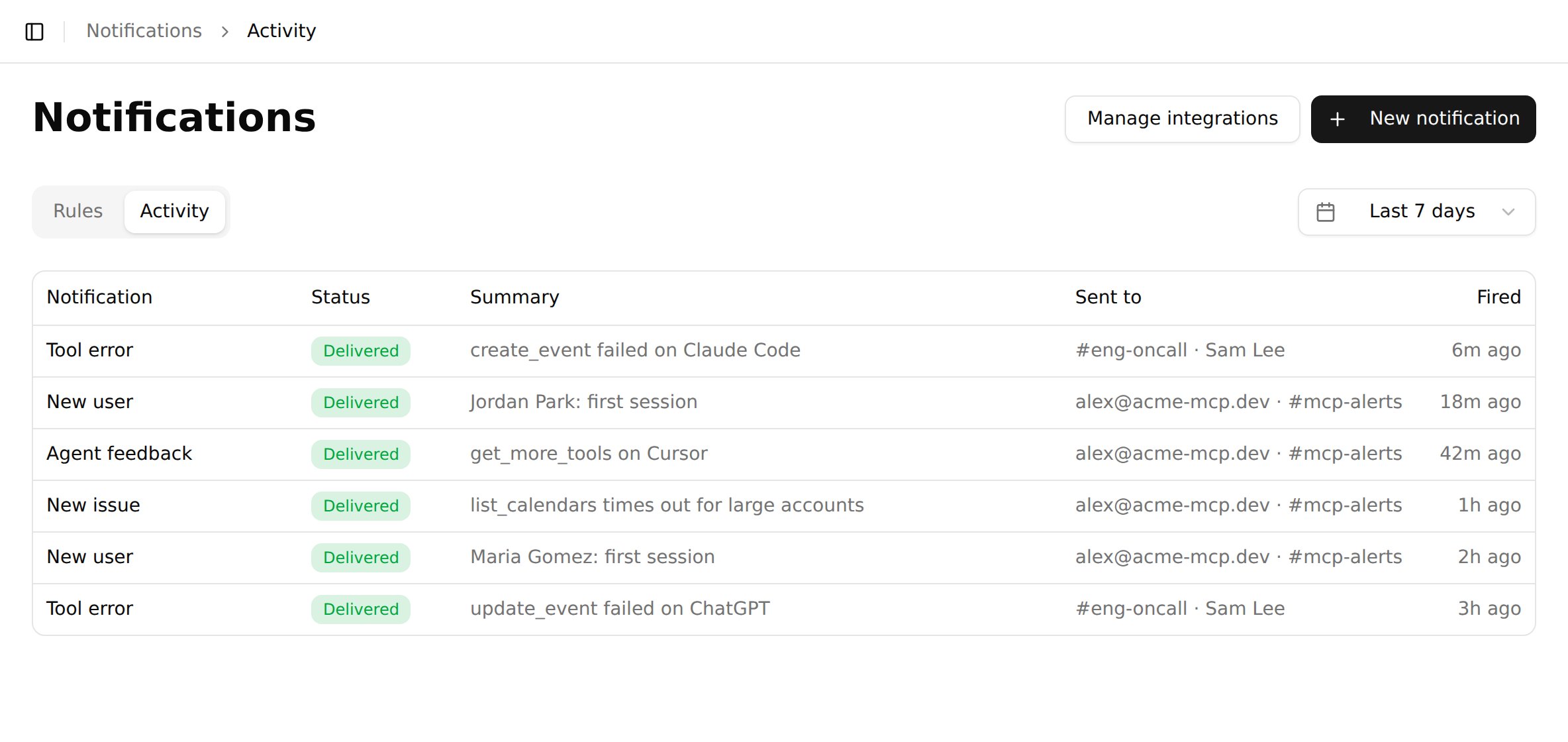
Manage Slack Channels
Go to Settings > Integrations, and click Manage on the Slack card. This page shows the connected workspace and each channel that AgentCat sends to.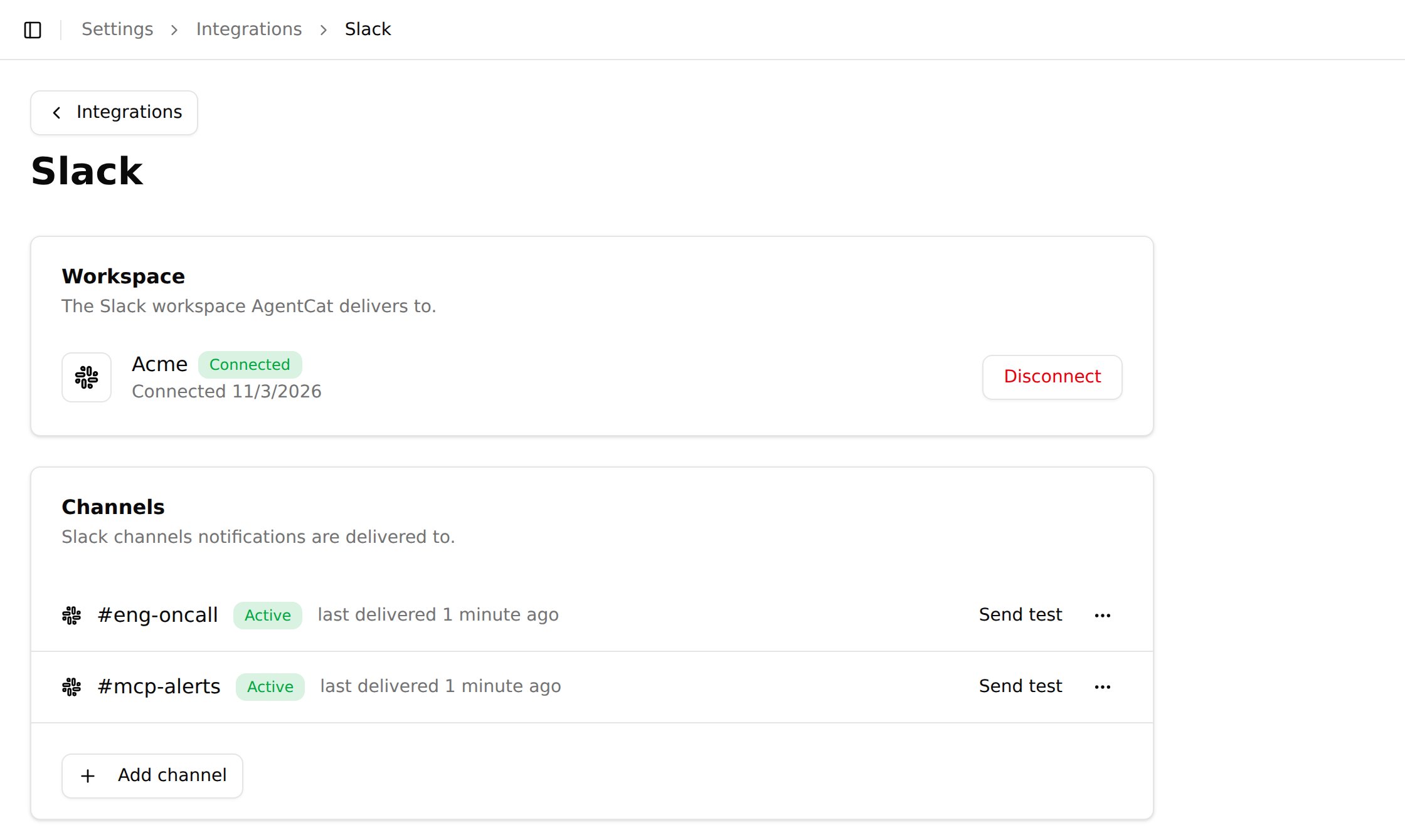
- Click Add channel to add a channel
- Click Send test to send a test message to a channel
- Click the menu (…) of a channel, then click Remove
- Click Disconnect to disconnect the Slack workspace