> ## Documentation Index
> Fetch the complete documentation index at: https://docs.agentcat.com/llms.txt
> Use this file to discover all available pages before exploring further.
# Data Export
> Export your AgentCat analytics data to S3 for custom analysis, data warehousing, or compliance.
AgentCat lets you export your analytics data to your own Amazon S3 bucket. Once configured, your data is exported as Parquet files: ready for your data warehouse, BI tools, or compliance archives.
Exported data includes events, sessions, users, and agent goals. Sensitive fields are automatically redacted. See [Privacy & Security](/privacy-security) for details on how AgentCat protects your data.
## Prerequisites
* Data export enabled for your organization
* An AWS account where you can create IAM roles
* An S3 bucket in your AWS account to receive exports
## Setting up a destination
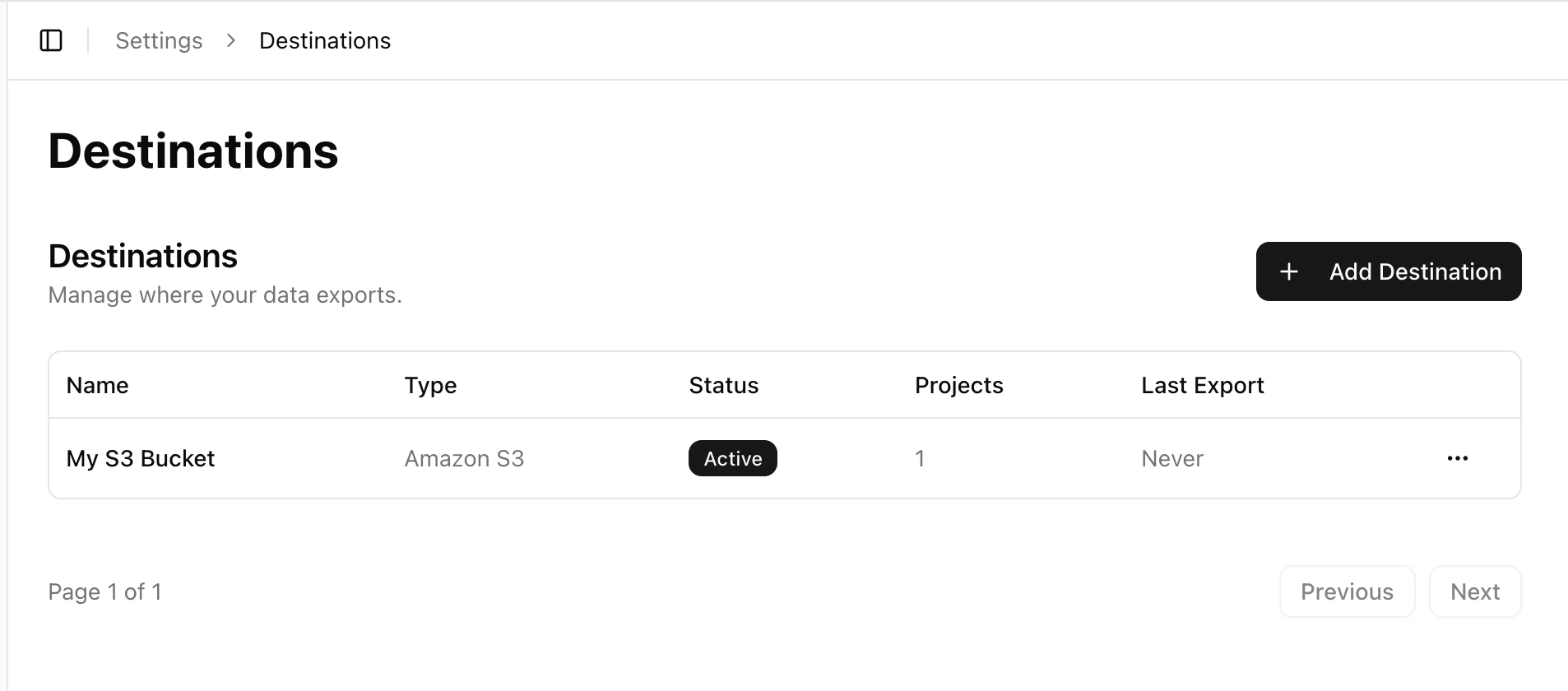
Navigate to **Settings > Destinations > Add Destination** to start the setup wizard.
 ### Step 1: Choose destination type
Currently S3 is the only supported destination type. Select it and continue.
### Step 2: Configure your S3 bucket
| Field | Required | Description |
| -------------------- | -------- | ---------------------------------------------------------------------------------------- |
| **Destination name** | Yes | A friendly name (e.g., "Production Data Lake") |
| **Bucket name** | Yes | Your S3 bucket name |
| **AWS region** | Yes | The region where your bucket lives |
| **AWS account ID** | Yes | Your 12-digit AWS account ID |
| **IAM role name** | Yes | The name of the IAM role AgentCat will assume (e.g., `agentcat-s3-export`) |
| **Path prefix** | No | Optional prefix for the export path. Exports land at `s3://bucket/{prefix}/agentcat/...` |
| **KMS encryption** | No | If your bucket uses SSE-KMS, provide the KMS key ARN |
### Step 3: Set up the IAM role in your AWS account
AgentCat uses cross-account IAM role assumption — your data stays in your AWS account and AgentCat never sees your AWS credentials.
AgentCat generates the exact IAM policies you need. The wizard provides setup instructions in five formats:
* **AWS Console** — step-by-step manual instructions
* **AWS CLI** — copyable shell commands
* **Terraform** — HCL code you can add to your infrastructure
* **Pulumi** — TypeScript code for Pulumi users
* **CloudFormation** — one-click "Launch Stack" button that creates everything automatically
The generated IAM role includes:
* A **trust policy** that allows AgentCat's service role to assume it, with your organization ID as an external ID for security
* A **permissions policy** granting `s3:PutObject`, `s3:PutObjectAcl`, and `s3:DeleteObject` on your bucket path (and `kms:GenerateDataKey` / `kms:Decrypt` if KMS is configured)
### Step 4: Verify the connection
After creating the IAM role in your AWS account, return to AgentCat and click **Verify Connection**. AgentCat will:
1. Assume your IAM role via STS
2. Write a test object to your bucket
3. Delete the test object
If verification fails, AgentCat shows which step failed with a specific error message (e.g., "Role assumption failed", "Write denied", "KMS access denied") to help you troubleshoot.
## Assigning projects to a destination
After your destination is verified and active:
1. Navigate to **Settings > Projects** and select a project
2. In the **Exports** section, click **Add Destination**
3. Select from your verified destinations
4. Toggle the export on or off per project
A project can be assigned to multiple destinations, and a destination can receive data from multiple projects.
## What gets exported
AgentCat exports your data as Parquet files:
| File | Contents |
| ------------------- | ----------------------------------------------------------------------------------------- |
| **Events** | All captured MCP events (tool calls, resource reads, etc.) |
| **Sessions** | Session metadata including timing, event counts, and client info |
| **Users** | Identified user records and metadata |
| **Goals** | Agent goal definitions discovered by AgentCat |
| **Enhanced events** | Events denormalized with session, user, and goal data in a single table for easy querying |
Only sessions with at least one action and an assigned agent goal are included in exports. This filters out empty or incomplete sessions to keep your exported data meaningful.
**Privacy:** The `parameters` and `response` fields on events are excluded from exports entirely. They are never loaded or written to the Parquet files. The `ip_address` field is also excluded. String values in user identification data are redacted and only boolean and numeric values are preserved for analysis. Learn more about [server-side redaction](/privacy-security/server-side-redaction).
## Export path structure
Exports are written to:
```
s3://{bucket}/{prefix}/agentcat/{project_id}/{date}/{filename}.parquet
```
Example:
```
s3://my-data-lake/analytics/agentcat/proj_abc123/2026-04-03/proj_abc123_events.parquet
s3://my-data-lake/analytics/agentcat/proj_abc123/2026-04-03/proj_abc123_sessions.parquet
s3://my-data-lake/analytics/agentcat/proj_abc123/2026-04-03/proj_abc123_enhanced_single_table.parquet
```
## Managing destinations
* **Enable/disable**: Toggle a destination on or off without deleting it
* **Edit**: Update the name or S3 configuration (changing config resets verification — you'll need to re-verify)
* **Delete**: Permanently remove a destination (also removes all project assignments)
* **Re-verify**: Test the connection again anytime from the destination detail page
### Step 1: Choose destination type
Currently S3 is the only supported destination type. Select it and continue.
### Step 2: Configure your S3 bucket
| Field | Required | Description |
| -------------------- | -------- | ---------------------------------------------------------------------------------------- |
| **Destination name** | Yes | A friendly name (e.g., "Production Data Lake") |
| **Bucket name** | Yes | Your S3 bucket name |
| **AWS region** | Yes | The region where your bucket lives |
| **AWS account ID** | Yes | Your 12-digit AWS account ID |
| **IAM role name** | Yes | The name of the IAM role AgentCat will assume (e.g., `agentcat-s3-export`) |
| **Path prefix** | No | Optional prefix for the export path. Exports land at `s3://bucket/{prefix}/agentcat/...` |
| **KMS encryption** | No | If your bucket uses SSE-KMS, provide the KMS key ARN |
### Step 3: Set up the IAM role in your AWS account
AgentCat uses cross-account IAM role assumption — your data stays in your AWS account and AgentCat never sees your AWS credentials.
AgentCat generates the exact IAM policies you need. The wizard provides setup instructions in five formats:
* **AWS Console** — step-by-step manual instructions
* **AWS CLI** — copyable shell commands
* **Terraform** — HCL code you can add to your infrastructure
* **Pulumi** — TypeScript code for Pulumi users
* **CloudFormation** — one-click "Launch Stack" button that creates everything automatically
The generated IAM role includes:
* A **trust policy** that allows AgentCat's service role to assume it, with your organization ID as an external ID for security
* A **permissions policy** granting `s3:PutObject`, `s3:PutObjectAcl`, and `s3:DeleteObject` on your bucket path (and `kms:GenerateDataKey` / `kms:Decrypt` if KMS is configured)
### Step 4: Verify the connection
After creating the IAM role in your AWS account, return to AgentCat and click **Verify Connection**. AgentCat will:
1. Assume your IAM role via STS
2. Write a test object to your bucket
3. Delete the test object
If verification fails, AgentCat shows which step failed with a specific error message (e.g., "Role assumption failed", "Write denied", "KMS access denied") to help you troubleshoot.
## Assigning projects to a destination
After your destination is verified and active:
1. Navigate to **Settings > Projects** and select a project
2. In the **Exports** section, click **Add Destination**
3. Select from your verified destinations
4. Toggle the export on or off per project
A project can be assigned to multiple destinations, and a destination can receive data from multiple projects.
## What gets exported
AgentCat exports your data as Parquet files:
| File | Contents |
| ------------------- | ----------------------------------------------------------------------------------------- |
| **Events** | All captured MCP events (tool calls, resource reads, etc.) |
| **Sessions** | Session metadata including timing, event counts, and client info |
| **Users** | Identified user records and metadata |
| **Goals** | Agent goal definitions discovered by AgentCat |
| **Enhanced events** | Events denormalized with session, user, and goal data in a single table for easy querying |
Only sessions with at least one action and an assigned agent goal are included in exports. This filters out empty or incomplete sessions to keep your exported data meaningful.
**Privacy:** The `parameters` and `response` fields on events are excluded from exports entirely. They are never loaded or written to the Parquet files. The `ip_address` field is also excluded. String values in user identification data are redacted and only boolean and numeric values are preserved for analysis. Learn more about [server-side redaction](/privacy-security/server-side-redaction).
## Export path structure
Exports are written to:
```
s3://{bucket}/{prefix}/agentcat/{project_id}/{date}/{filename}.parquet
```
Example:
```
s3://my-data-lake/analytics/agentcat/proj_abc123/2026-04-03/proj_abc123_events.parquet
s3://my-data-lake/analytics/agentcat/proj_abc123/2026-04-03/proj_abc123_sessions.parquet
s3://my-data-lake/analytics/agentcat/proj_abc123/2026-04-03/proj_abc123_enhanced_single_table.parquet
```
## Managing destinations
* **Enable/disable**: Toggle a destination on or off without deleting it
* **Edit**: Update the name or S3 configuration (changing config resets verification — you'll need to re-verify)
* **Delete**: Permanently remove a destination (also removes all project assignments)
* **Re-verify**: Test the connection again anytime from the destination detail page